How to back up and restore the configuration file of TP-Link ISP-customized devices

02-14-2026
5085
NE211-Outdoor V1, NE210-Outdoor V1, NB425v V1, NE225-Outdoor V1, VB433v V1, NX620v V2, VB400v V1, VX800v V1, EB810v V1, VX420-G2h V3, HB810 V1, VX420-G2h V2, HB810 (EU) V1, HB710 (EU) V1, HB710 V1, HB615 V1, HB610 (EU) V2, HB610 V2, HB410 (EU) V1, Deco X53-DSL V1, HB210 Pro V1, HB210 Pro (EU) V1, HB210 V1, Deco BE28 V1, XGB830v V1, HX716 Pro V1, VX231v V1, HX710 Pro V1, VX230v V1, XGB430v Pro V1, XGB430v V1, EB610v V1, XB430v V1, VX220-G2v V1, XX532v V1, EB431v V1, XX530v V2, HX710 V1, XX530v V1, VC321-G2v V1, Archer VR1210v V2, Archer VR1210v V1, XX530 V2, HX510-PoE V1, VC221-G3v V1, HX510-Outdoor V1, HX510 V1, EB200v Pro V1, Archer VR1600v V1, HX510 V2, HX520 V1, HX521 V1, XX231v V1, HX220 V1, HX141 V1, VC220-F3v V1, EB210 Pro V1, HC220-G5 V1, VN020-F3 V1, XX230v V1, EB210 V1, TD-W8961N V1, XC220-G3v V2.30, XC220-G3 V1, XN020-G3v V1, NX520v V1, XN020-G3 V2, NX511v V1, XN020-G3 V3, NX510v V1, EX920 V1, NX220v V1, MX110v V1, MX515v V1, Deco X58-4G V1, EX820v V1, EX710 Pro V1, EX710 V1, EX510 Pro V1, EX510 V1, EX511 V2, EX520 V1, EX520v V1, EX521 V1, EX530v V1, Archer MR600 V2, Archer MR600 V1, EX220 V1, Archer MR400 V2, Archer MR400 V4, Archer MR400 V3, EX222 V1, Archer MR200 V3, Archer MR200 V5, XGZ030v V2, Archer MR200 V4, XGZ030 V2, EX230v V1, XGZ030 V1, TL-MR6500v V1, XGZ032v V1, XGZ032 V1, TL-MR6400 V5, TL-MR6400 V4, XZ005-G6 V1, TL-MR100 V1, EX141 V1, XZ000-G6v V1, XZ000-G6 V1, EC225-G5 V1, XZ001-G7 V1, XZ001-G6 V1, EC223-G5 V1, EC220-G5 V2, EC220-G5 V3, XZ000-G7 V1, XZ000-G7 (UPC) V1, EC220-F5 V1, TL-WR850N V1, DS-P8000-X7 V1, DS-P8000-X2 V1, DS-LGPA-16 V1, DS-LGPA-08 V1, DS-P7500-16 V1, DS-P7501-08 V1, DS-P7500-08 V1, DS-P7001-16 V1, DS-P7001-08 V1, DS-P7001-04 V1, DS-P7001-01 V1, DS-ETPA-1U V1, PSM150-DC V1, TL-SM7110-SR V1, DS-PMA-C++ V2, DS-PMA-Combo C+ V1, DS-PMA-C+ V2, DS-PMA-C+ V1, XGM80A V1, XM60A V1

Introduction

This FAQ article explains how to back up the current configuration of TP-Link ISP-customized Devices, including network, wireless, and advanced function settings. When configuring a new ISP-customized device, you can also directly copy the information from the backup file.

Configuration

Scenario 1: Back up configuration settings

Step 1. Log in to the ISP-customized device via its LAN gateway IP address in a web browser (e.g., Chrome or Firefox).

Note: You can check the LAN gateway IP in the client's network adapter settings. Here we use 192.168.1.1 as an example.

The link to the web-based interface.

Step 2. Click Advanced > System Tools > Backup & Restore.
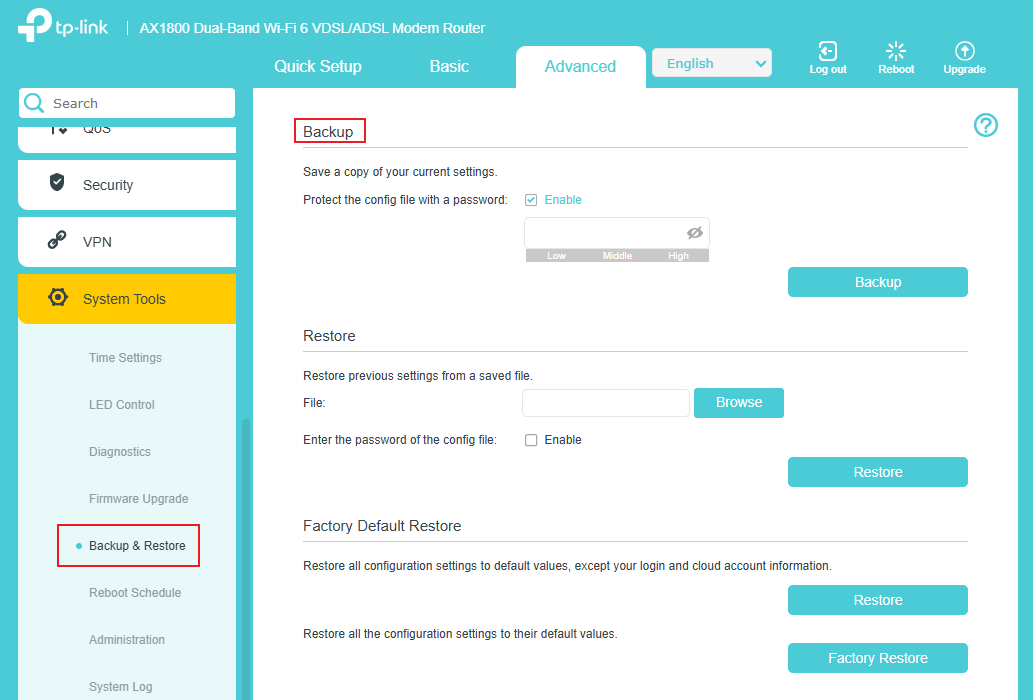
“Backup & Restore” page.

Step 3. Click Backup to save a copy of the current settings to your local computer. The conf.bin file will be saved on your computer. You can also set a password to protect the config.
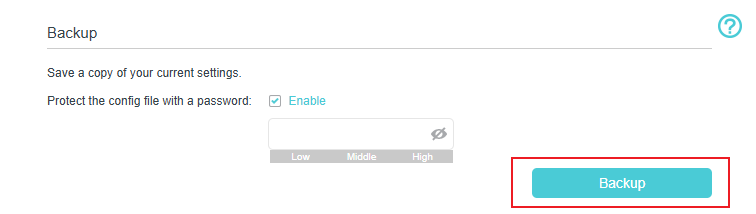
The button to back up the configuration file.

Note: Only some newer models support Protect the config file with a password.

Scenario 2: Restore configuration settings

Step 1. Log in to the ISP-customized device via its LAN gateway IP address in a web browser (e.g., Chrome or Firefox).

Note: You can check the LAN gateway IP in the client's network adapter settings. Here we use 192.168.1.1 as an example.

The login url.

Step 2. Click Advanced > System Tools > Backup & Restore.
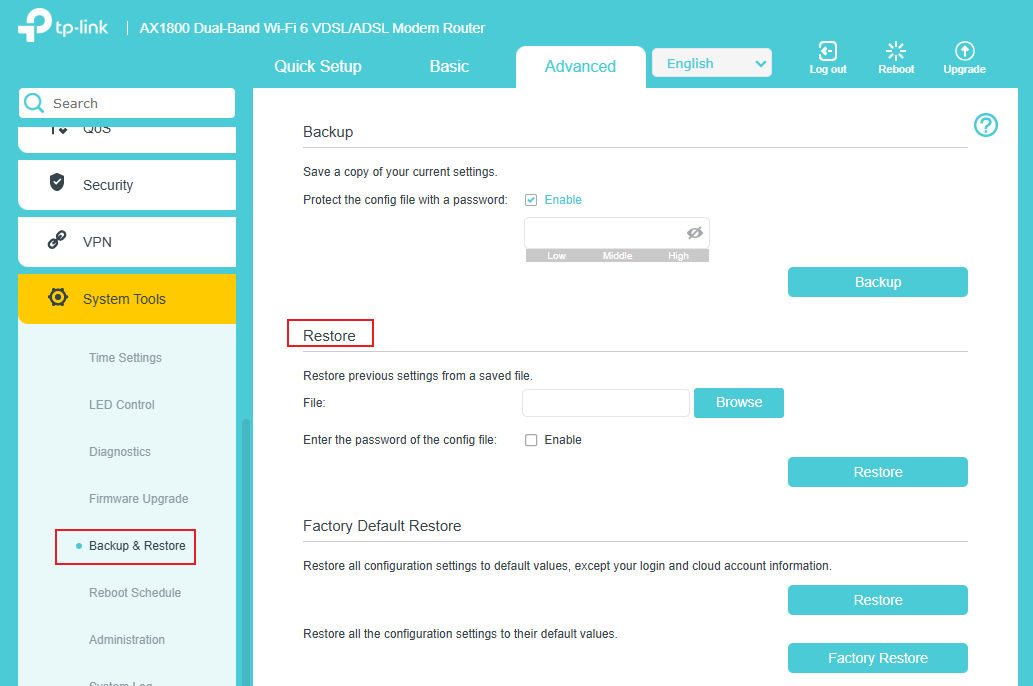
“Backup & Restore” page.

Step 3. Click Browse to find the previous backup file and then click Restore. If you have set a password for the backup file, you need to enable the Enter the password of the config file and enter the correct password before clicking Restore.
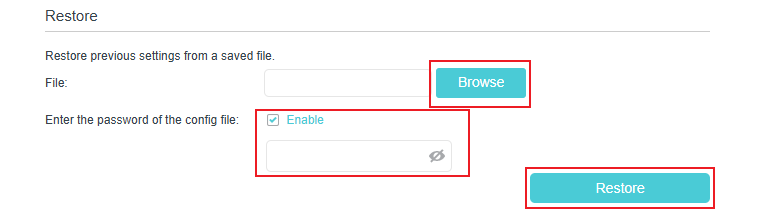
The button to restore the configuration file.

Note: Only some newer models support Enter the password of the config file, and you can only restore config files that were exported from the same model.

Step 4. Wait for the recovery process to complete, and the router will restart automatically.

Note: The current configuration will be covered with the uploaded configuration file. An incorrect process will result in the device being unmanaged. The restoration process takes more than 30 seconds, and the router will restart automatically afterward. Keep the router's power on during the process in case of any damage.

Get to know more details of each function and configuration please go to Download Center to download the manual of your product.