How to Fix Slow Internet on a TP-Link Router
Slow TP-Link internet can have more than one cause: your router settings, your modem, your Internet service provider (ISP), or your wireless environment may each play a role. This page covers fixes for both wired and wireless slowdowns so you can find the right solution for your situation.
Key Takeaways
- Before assuming the TP-Link router is the problem, connect a computer directly to your modem and run a speed test. If speeds are the same as through the router, the issue lies with your ISP or modem.
- A router that is covered, placed in a confined space, or left in direct sunlight can cause it to overheat, leading to slow internet speeds.
- If both wired and wireless connections are slow, restart the modem first (wait two to three minutes), then restart the router, and consider swapping the Ethernet cable between modem and router with a Cat6 or better cable.
- If only Wi-Fi is slow, position the router and your device six to nine feet apart with no barriers between them, and keep both on the same horizontal plane when running a speed test.
- Changing the wireless channel and channel width on your TP-Link router (for example, 2.4 GHz to 40 MHz or 5 GHz to 80 or 160 MHz) can resolve slow Wi-Fi caused by interference.
- Disabling Quality of Service (QoS) and Parental Controls on your TP-Link router can help rule out these settings as a cause of throttled speeds.
Troubleshooting Slow Wired and Wireless Connections
If every device on your network is experiencing slow speeds, whether connected by Ethernet or Wi-Fi, follow these steps in order:
Step 1: Test your speed directly through the modem
- Disconnect the TP-Link router from the modem (the device provided by your Internet service provider).
- Connect your computer directly to the modem using an Ethernet cable
- Run an Internet speed test, which means visiting a speed test site in your browser and measuring your actual download and upload rates.
- If the results are the same as when using the router, the problem is with your modem or ISP, not the router.
Step 2: Restart your modem and router
Unplug your modem, then unplug your router. Wait two to three minutes, then power on the modem first. Once it is fully connected, restart your TP-Link router.
Step 3: Try a different Ethernet cable
Swap out the Ethernet cable running between your modem and router. A Cat6 cable or higher is recommended for the best performance.
Step 4: Check your MAC address settings if you recently replaced your router
If you replaced an older router with a new TP-Link router and your speeds dropped, the issue may be related to your ISP recognizing the old router's MAC address. In this case, try cloning your computer's MAC address or your old router's MAC address to the new TP-Link router. For more details on this scenario, see: Why my Internet slows down when replacing the old router with a new one.
Step 5: Disable QoS and Parental Controls
Both Quality of Service (QoS) and Parental Controls can affect overall speeds. See the tips section below for instructions on disabling each setting.
Troubleshooting a Slow Wi-Fi Connection
If wired connections are fine but Wi-Fi is slow, the cause is likely your wireless environment or router settings.
Step 1: Clear the wireless environment before testing
When running a speed test on a wireless device, position it six to nine feet from the router with no walls, furniture, or other barriers between them. Place both the router and your device on the same horizontal plane for the most accurate result.
Step 2: Change the wireless channel and channel width
Interference from neighboring networks can slow down your Wi-Fi. Log in to your TP-Link router and change the wireless channel and channel width. For the 2.4 GHz band, try a channel width of 40 MHz. For the 5 GHz band, try 80 MHz or 160 MHz. For guidance, see Changing channel and channel width on a TP-Link router.
Step 3: Disable QoS and Parental Controls
If slow speeds persist, disable QoS and Parental Controls on your TP-Link router. See the tips section below.
Tips: Accessing Router Settings to Fix Slow Internet
To access these settings, log in to your TP-Link router's web management page. For instructions, see How to log in to the web-based utility of a TP-Link wireless router.
Refer to How to disable QoS on your TP-Link router for step-by-step instructions.
Via Web: Using an Archer A7 as an example: go to Advanced > Parental Controls. If any profiles are listed, click the delete ( )button to remove them.
Note: For TP-Link ISP-customized modem routers, the configuration process is the same as described above.
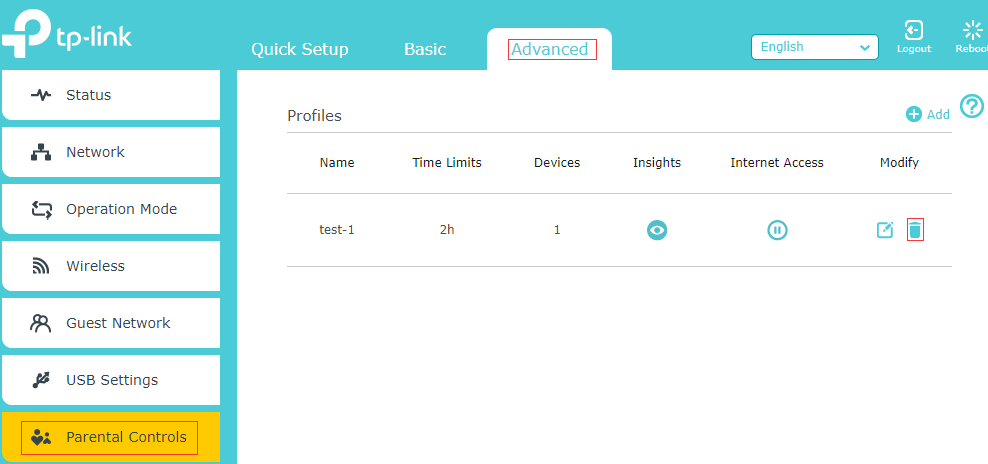
Via Tether app: see How to set Parental Control on TP-Link Wi-Fi Router via Tether app to disable the Parental Control.
Via Aginet app: see How to set up Parent Control on TP-Link ISP-customized Modem Router to disable the Parental Control.
Still Experiencing Slow Internet?
If none of the steps above resolve your TP-Link router's slow speed issue, our support team can walk you through a more in-depth diagnosis. Contact TP-Link support for personalized help.
