How to create Static Route on TP-Link ISP-customized Router

02-03-2026
6164
NE211-Outdoor V1, NE210-Outdoor V1, NB425v V1, NE225-Outdoor V1, VB433v V1, NX620v V2, VB400v V1, VX800v V1, VX420-G2h V3, HB810 V1, VX420-G2h V2, HB810 (EU) V1, HB710 (EU) V1, HB710 V1, HB615 V1, HB610 (EU) V2, HB610 V2, HB410 (EU) V1, Deco X53-DSL V1, HB210 Pro V1, HB210 Pro (EU) V1, HB210 V1, Deco BE28 V1, XGB830v V1, HX716 Pro V1, VX231v V1, HX710 Pro V1, VX230v V1, XGB430v Pro V1, XGB430v V1, XB430v V1, VX220-G2v V1, XX532v V1, XX530v V2, HX710 V1, XX530v V1, VC321-G2v V1, Archer VR1210v V2, Archer VR1210v V1, XX530 V2, HX510-PoE V1, VC221-G3v V1, HX510-Outdoor V1, HX510 V1, Archer VR1600v V1, HX510 V2, HX520 V1, HX521 V1, XX231v V1, HX220 V1, HX141 V1, VC220-F3v V1, HC220-G5 V1, VN020-F3 V1, XX230v V1, TD-W8961N V1, XC220-G3v V2.30, XC220-G3 V1, XN020-G3v V1, NX520v V1, XN020-G3 V2, NX511v V1, XN020-G3 V3, NX510v V1, NX220v V1, MX110v V1, MX515v V1, Deco X58-4G V1, Archer MR600 V2, Archer MR600 V1, Archer MR400 V2, Archer MR400 V4, Archer MR400 V3, Archer MR200 V3, Archer MR200 V5, XGZ030v V2, Archer MR200 V4, XGZ030 V2, XGZ030 V1, TL-MR6500v V1, XGZ032v V1, XGZ032 V1, TL-MR6400 V5, TL-MR6400 V4, XZ005-G6 V1, TL-MR100 V1, XZ000-G6v V1, XZ000-G6 V1, XZ001-G7 V1, XZ001-G6 V1, XZ000-G7 V1, XZ000-G7 (UPC) V1, DS-P8000-X7 V1, DS-P8000-X2 V1, DS-LGPA-16 V1, DS-LGPA-08 V1, DS-P7500-16 V1, DS-P7501-08 V1, DS-P7500-08 V1, DS-P7001-16 V1, DS-P7001-08 V1, DS-P7001-04 V1, DS-P7001-01 V1, DS-ETPA-1U V1, PSM150-DC V1, TL-SM7110-SR V1, DS-PMA-C++ V2, DS-PMA-Combo C+ V1, DS-PMA-C+ V2, DS-PMA-C+ V1, XGM80A V1, XM60A V1

Introduction

The Static Route feature allows your network to manually specify the path that data packets should follow when reaching devices or subnets outside the main local network. By configuring static routes, you can ensure stable, predictable data transmission across network segments, especially in multi-router environments or advanced home/office network setups.

This article introduces the purpose of Static Routes and explains when and why you may need to use them, helping you understand how to manage traffic flow between multiple subnets safely and efficiently.

Configuration

In this example, we use NX510v(EU1) 1.0 as the demonstration model.

Step 1. Log in to the web portal with the login password.
The logging page of the web portal.

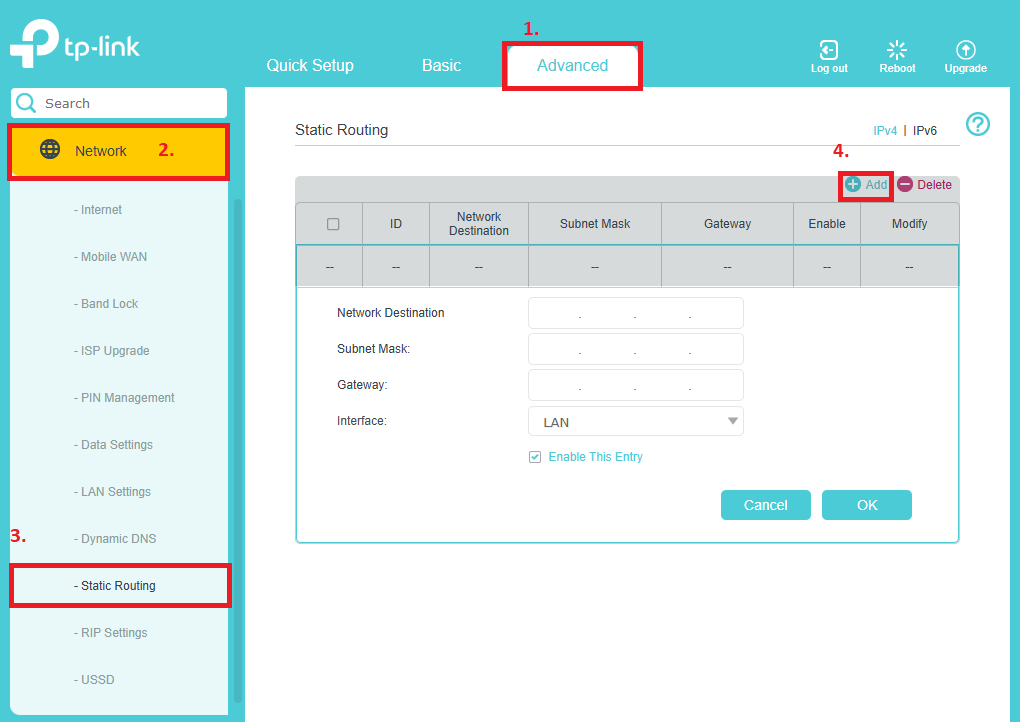
Step 2. Go to Advanced > Network > Static Routing. Click Add The “Add” button on the portal..

The setting page of static routing.

Step 3. Fill in the table according to the explanation:

  • Network Destination: The destination network or host that you want this static route to reach.
  • Subnet Mask: Defines which portion of the IP address belongs to the network and which portion to the host.
  • Default Gateway: This is the IP address of the default gateway device that enables communication between the Router and the network or host.
  • Interface: Select the outbound interface used to reach the destination network.

Step 4. Click Save. If the entry appears in the routing table, the static route has been added successfully.
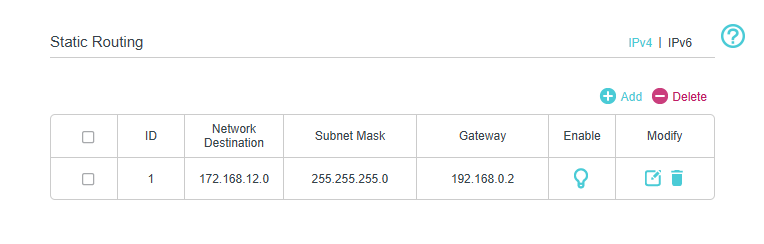
Example of a successfully added static route.

Get to know more details of each function and configuration please go to Download Center to download the manual of your product.