How to configure Wireless MAC address filter on TD-W8901G(N),TD-W8151N,TD-W8951ND(B),TD-W8961N(D/B)
04-12-2011
133437
1. Check the MAC Address of the Wireless Adapter
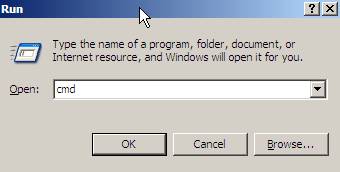
Step 1 On the keyboard, press the Windows button and R button at the same time. A window named Run will pop out, type cmd in the box and click OK button.
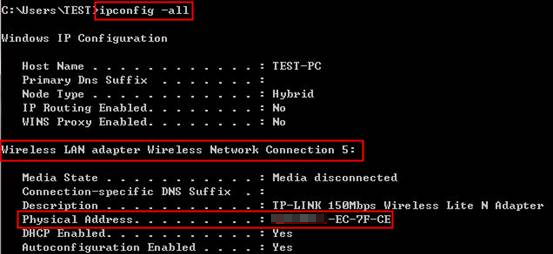
Step 2 In the coming black window, please type in “ipconfig –all” and then press the Enter button on the keyboard. The adapter information will show like below, please look for the Physical Address of your wireless network adapter.
2. Configure the Modem Router
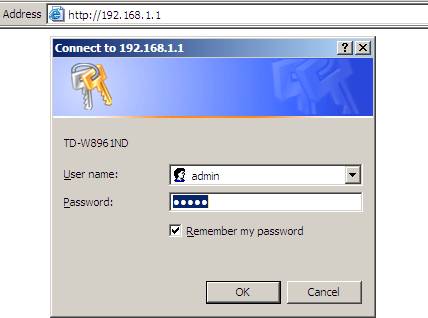
Step 1 Open the web browser and type in http://192.168.1.1 in the address bar and press Enter. The Username and Password are both “admin”.
Step 2 Please go Interface Setup->Wireless page, you will see Wireless MAC Address Filter at the button of this page.
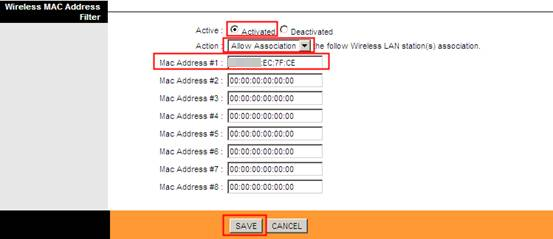
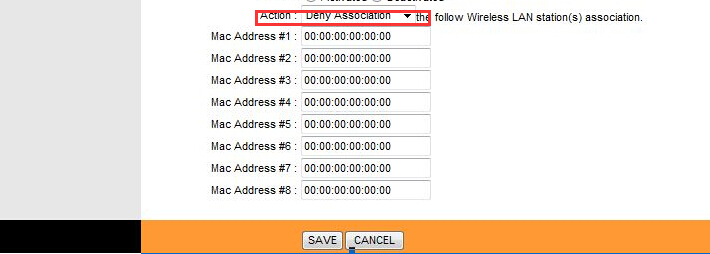
Step 3 In the Action, please choose Allow Association and type in your MAC address in the box. The MAC address should be in the same format as it is showed, numbers with colons.
Step 4 At last, click the SAVE button.
Then only the MAC Addresses in the list will be able to connect to the wireless and use the internet .
You can also choose “Deny Association” and type in the MAC addresses,then the listed MAC addresses will NOT be able to use the internet wirelessly.
Get to know more details of each function and configuration please go to Download Center to download the manual of your product.
